
Catch Slider Pro – A premium WordPress plugin allows you to add interesting sliders on your website to make it more engaging, accessible, and visually appealing. The plugin is fully responsive and your sliders will look amazing on all devices. It empowers you with an array of features and crucial customization options—such as slider type, color options, mobile options, navigation button style, slider script, show/hide caption, caption position, font sizes, image sizes, and more—to further enhance the user experience. The plugin comes with slider options where you can choose the slider type, unlimited color palette, several mobile-friendly features, five navigation button styles, four different slider scripts, show/hide captions with the caption position option, and more. Buy Catch Slider Pro today, showcase your sliders in an elegant manner and make your website more graceful, lively, and engaging than ever!

Amazing Features
Slider Options
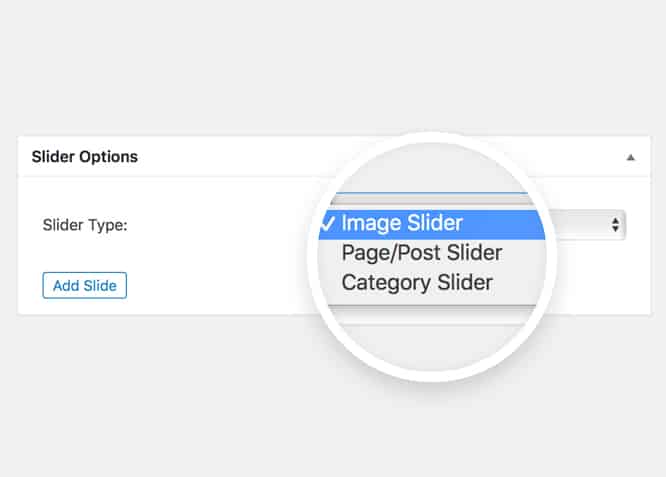
When you decide to put your slider in the limelight, you might want to display images, certain posts or pages, or you might also want to display content from certain categories. So, in order to do just that, Catch Slider Pro plugin provides you the Slider Options. In the Slider options, you can choose the type of slider you want to display—the images, posts, pages, or categories. You can then further customize the type of the slider you select.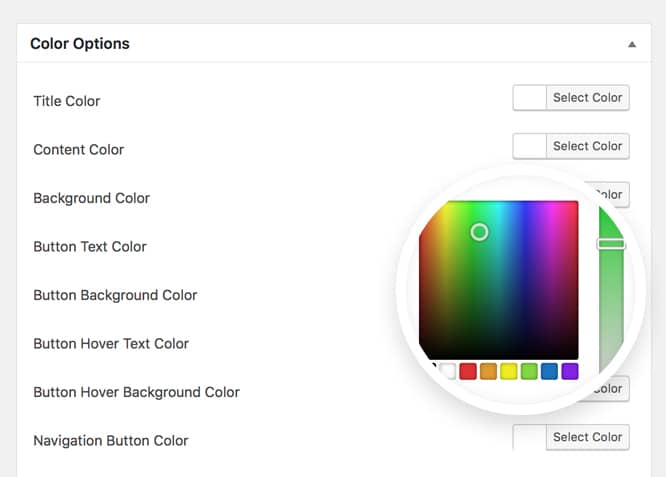
Color Options
Our new WordPress plugin for sliders empowers you with the unlimited color palette for various areas of your slider. You can pick colors for your Title, Content, Background, Button Text, Button Background, Button Hover Text, Button Hover Background, Navigation Button, and Navigation Hover Button. Thus, with the unlimited color palette, make your slider youthful, or elegant and classy.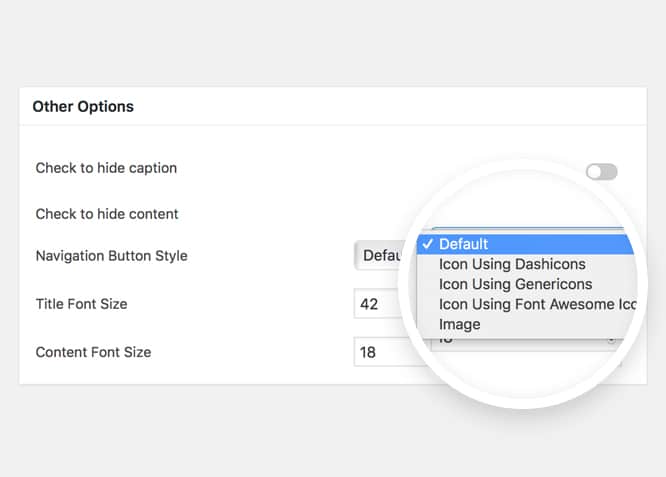
Navigation Button Style
With Catch Slider Pro plugin, you don’t really have to worry about displaying those old-school navigation button style. You can choose from five different navigation button styles, including the default style. You can select Icon Using Dashicons, Icon Using Genericons, Icon Using Font Awesome Icons or any Image as your Navigation Button Style.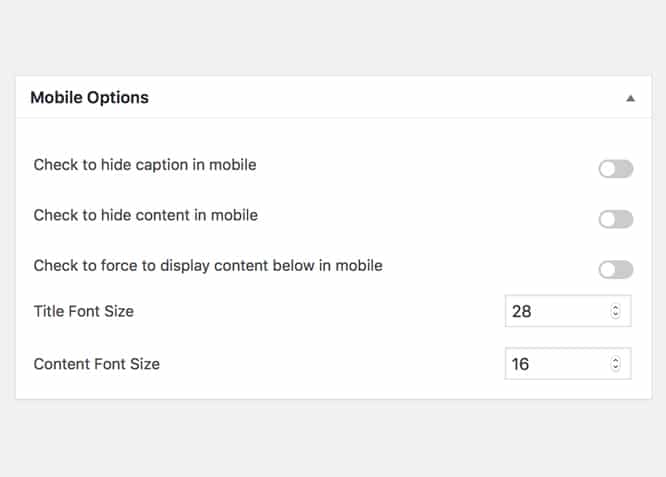
Mobile Options
The growth of mobile users nowadays is on peak and in times like this, we need to focus on making our website mobile-friendly as well. Therefore, we’ve added numerous mobile options that would help you in showcasing your sliders in the way you want elegantly. People visiting your website through smartphones will be able to view your sliders as elegantly as they would in desktops. You have options to hide caption, content and display content below the sliders. Also, you can select your title and content font size for your sliders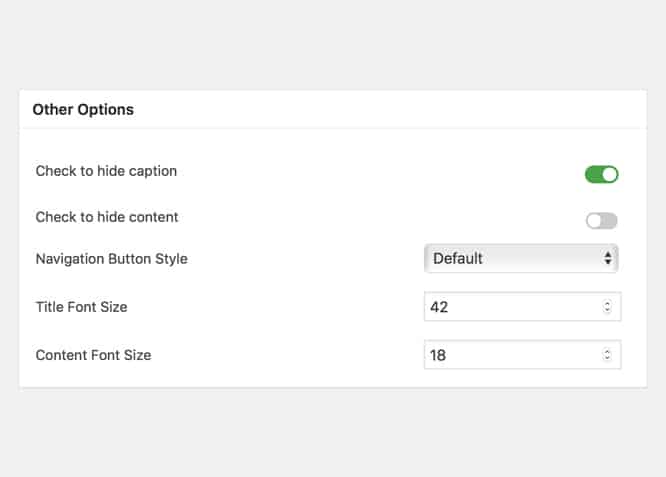
Show/Hide Caption
When it comes to sliders, displaying captions can be a pretty handy feature to have. Adding captions to your content on the slider lets your visitors know what you’re trying to showcase if they get confused. Catch Slider Pro empowers you with the ability of show/hide captions where you can add exciting captions on your slider and make them more informative for your visitors. You can just leave the caption field empty if you don’t want to add one. Your website, your way!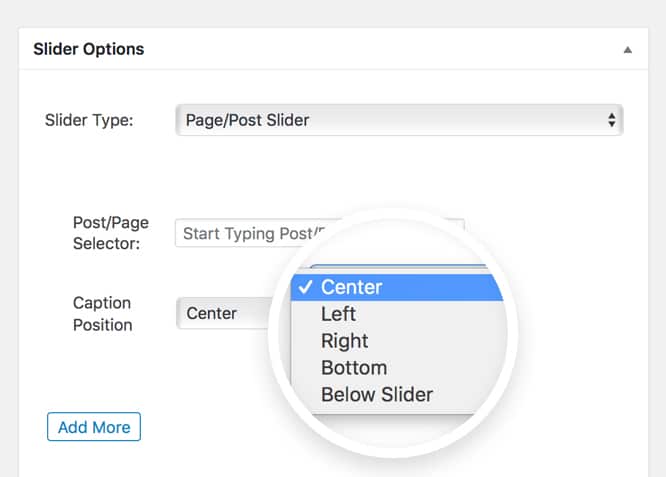
Caption Position
If you’ve decided to add captions to your content on your slider, and want them to be displayed a little differently, you can do that with the ‘Caption Position’ option available in Catch Slider Pro. You can choose to display the caption either on the center, left, right, bottom or just below the slider. The option is available to you only when you select the Image Slider or Post/Page slider.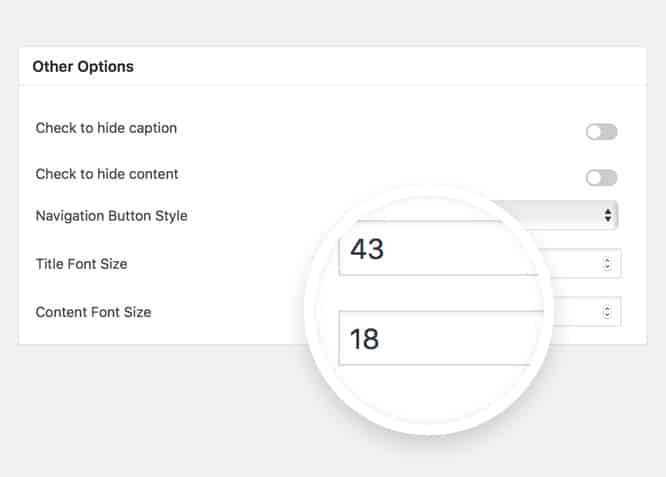
Font Size
Depending on your website, its kind and your preference, you might want the fonts used on the slider to be unique, bold, and different. Our new WordPress slider plugin allows you to choose what size you want the fonts to be on your slider. You can choose the font size of your Title and Content. So, with the font size option available, you can choose the font size that suits best for your slider without any disruption.
Lightweight
Catch Slider Pro, our new WordPress slider plugin is extremely lightweight. Therefore, you do not have to worry about your website getting slower because of the plugin.More Features
Shortcodes
With Shortcodes, you have the option to use the powerful shortcode options to style multiple contents in completely different ways.
Incredible Support
We have a great line of support team and support documentation. You do not need to worry about how to use the plugins we provide, just refer to our Tech Support Forum. Further, if you need to do advanced customization to your website, you can always hire our theme customizer!
Responsive Design
One of the key features of our plugins is that your website will magically respond and adapt to different screen sizes delivering an optimized design for iPhones, iPads, and other mobile devices. No longer will you need to zoom and scroll around when browsing on your mobile phone.
Super Simple to Set Up
It is super easy to set up. Even the beginners can set it up easily and also, you do not need to have any coding knowledge. Just install, activate, customize it your way and enjoy the plugin.
Plugin Instructions
Features in Catch Slider Pro
- Image Slider
- Page/Post Slider
- Category Slider
- Color Option
- Mobile Option
- Other Options
#How to install plugin?
Go to this link#How to update plugin?
Go to this link#Image Slider
- Select Image Slider from Slider Type option
- Click Add Slide button to add image to the slider
- Select an image and click Select
- Fill up the slide options in Slider #
- For adding new slides, repeat step 2 to 4
- Click remove item button to remove the selected slide
- Click Save button to save the slider
#Post Page Slider
- Select Post/Page Slider from Slider Type option
- Type Post/Page title in Post/Page Selector and choose the desired post/page
- Select caption position in Caption Position option
- For adding new slides, repeat step 2 to 3
- Click remove item button to remove the selected
- Select Content type you want to display in your slider. You can either display Excerpt Content or Full Content.
- You can choose desired image sizes from all available image sizes including defaults.
- Click Save button to save the slider
#Category Slider
- Select Category Slider from Slider Type option
- Enter desired number of slides you want to show on your slider
- Select desire categories in Select Category option. Hold down the Ctrl (windows) / Command (Mac) button to select multiple options.
- Select Content type you want to display in your slider. You can either display Excerpt Content or Full Content.
- You can choose desired image sizes from all available image sizes including defaults.
- Click Save button to save the slider
#Color Options
- Title color: Sets Slider's title color
- Content color: Sets Slider's content color
- Button Text Color: Sets button text color
- Button Color: Sets button color
- Button Hover Text Color: Sets button text color on hover
- Button Hover Color: Sets button color on hover
- Navigation Button Color: Sets navigation color
- Navigation Button Hover Color: Sets navigation color on hover
#Mobile Options
- Check to hide caption in mobile: Check this option to hide Caption on mobile/small devices only.
- Check to hide content in mobile: Check this option to hide Content on mobile/small devices only.
- Check to force display content below in mobile: Check this option to always show caption below slider on mobile/small devices.
- Title font size: Sets title font size of slider on mobile/small devices only.
- Content font size: Sets content font size of slider on mobile/small devices only.
#Other Options
- Check to hide caption: Check this option to hide Caption.
- Check to hide content: Check this option to hide Content.
- Navigation Button Style: Select navigation button style from Dashicons, Genericons, Font Awesome or Custom Image.
- Title font size: Sets title font size of slider.
- Content font size: Sets content font size of slider.
#Advance Settings
- Slider Script: Select the slider script/library you want to use.
- Check to show nav arrows: Check this option to hide Content.
- Check to show nav pager: Select navigation button style from Dashicons, Genericons, Font Awesome or Custom Image.
#Additional Settings
- These options varies according to the Slider script selected.
Reset Settings
- Check to reset all settings: Check this option and Save/Update to reset all setting to default.
Change Log
2.0 (Released: May 22, 2026)
- Bug Fixed: Post search in the slider editor was not working after the previous security update — the search now correctly passes its security token and receives results
- Bug Fixed: Slider button links, targets, and button text were output without escaping — fixed across all four slider types (Cycle 2, Flex, Nivo, Responsive)
- Bug Fixed: Thumbnail images in the image pager and custom navigation arrows were output without proper URL escaping
- Bug Fixed: Slide title and content in Nivo and Responsive slider types were output without sanitization
- Bug Fixed: Block editor script was cached by the browser after updates — now uses file modification time as the version so the browser always loads the latest code
- Improved: Block editor scripts now load in the page footer for better performance
- Improved: Code cleaned up to meet the latest WordPress coding standards and pass the official Plugin Check tool
- Bug Fixed: Post search in the slider editor was not secured — it now properly checks user permissions before returning results
- Bug Fixed: Slider color settings (title, content, button, navigation colors) were not sanitized before being applied — fixed to prevent invalid values from reaching the page
- Bug Fixed: Navigation arrow image URLs were output without escaping — fixed to prevent unexpected characters
- Bug Fixed: The "Catch Themes & Catch Plugins Tabs" toggle on the settings page was not fully secured — nonce and permission checks have been added
- Bug Fixed: Version number shown in the plugin header did not match the internal version constant — now consistent
- Bug Fixed: Several security improvements — all form inputs are now properly validated and sanitized before saving
- Improved: Admin and frontend scripts now load in the page footer for better performance
- Improved: Code cleaned up to meet the latest WordPress coding standards and pass the official Plugin Check tool
- Bug Fixed: Replaced deprecated 'wp-editor' script dependency with 'wp-block-editor' in block registration
- Bug Fixed: Adding the Catch Slider block in the post editor showed "Error loading block: Invalid parameter(s): attributes" — the editor preview now uses a static placeholder instead of a server-side render call, which eliminates the REST API validation failure entirely and is the correct approach for a slider block (sliders require CSS and JavaScript that cannot run inside the editor canvas)
- Bug Fixed: The Catch Slider block was not loading its preview in the editor on WordPress 6.3 and newer — resolved as part of the switch to a static placeholder which no longer depends on any server-side rendering API
- Bug Fixed: Block registration was happening too early during plugin load — moved to the correct stage so WordPress can properly validate and serve it
- Bug Fixed: Slider styles and scripts were loading during the wrong stage of the page load — moved to the correct point so they only load on the front end when needed
- Bug Fixed: Several translation strings were using the wrong language identifier — they will now load correctly with the plugin's own translations
- Bug Fixed: A number of translation strings were missing their language identifier entirely — they were not available for translation at all
- Bug Fixed: Some settings fields were putting dynamic values (like numbers) through the translation system when they shouldn't be — fixed to output the values directly
- Bug Fixed: Two translated strings containing links were missing context notes for translators, making it unclear what the link placeholder represented
- Bug Fixed: The slide number label in the slider editor (e.g. "Slider #1") was built using string joining, which breaks translation — now uses a proper placeholder so translators can reorder it
- Bug Fixed: Several translation strings across the plugin settings, updater, and block files were using an incorrect language identifier — they will now load the plugin's own translations correctly
- Bug Fixed: Translation strings in the license updater area were missing their language identifier entirely — they were not available for translation
- Bug Fixed: Two translated strings containing a link placeholder were missing a note for translators explaining what the placeholder represents — added across the settings, admin display, and updater files
- Bug Fixed: A translated string in the update notification contained a mixed placeholder format — one placeholder was written incorrectly and has been standardised
- Bug Fixed: A script in the themes browser section was loading in the page header instead of the footer — moved for better page performance
- Compatibility check up to version 7.0
1.8 (Released: February 24, 2026)
- Bug Fixed:WordPress.WP.EnqueuedResourceParameters.NoExplicitVersion
- Bug Fixed: WordPress.Security.SafeRedirect.wp_redirect_wp_redirect
- Bug Fixed: WordPress.Security.EscapeOutput.OutputNotEscaped
- Bug Fixed: missing_direct_file_access_protection
- Compatibility check up to version 6.9.1
1.7.1 (Released: May 13, 2026)
- Bug Fixed: Render Numeric pagination
1.7 (Released: May 12, 2025)
- Bug Fixed: Settings page URL
- Bug Fixed: Translation loading
- Compatibility check up to version 6.8
1.6.6 (Released: April 16, 2024)
- Bug Fixed: Plugin updater deprecation notice in PHP 8.1
- Compatibility check up to version 6.5
1.6.5 (Released: February 24, 2022)
- Compatibility check up to version 5.9
1.6.4 (Released: August 05, 2021)
- Compatibility check up to version 5.8
- Updated: add_filter hook to 'block_categories_all' since 'block_categories' is deprecated since 5.8
1.6.3 (Released: March 09, 2021)
- Bug Fixed: wp_localize_script issue
- Bug Fixed: Catch Slider Block
- Code optimization
- Compatibility check up to version 5.7
1.6.2 (Released: Aug 30, 2020)
- Bug Fixed: WP Color Picker issue in 5.5
1.6.1 (Released: Aug 19, 2020)
- Bug Fixed: Issue in add new theme page
1.6 (Released: May 21, 2020)
- Bug Fixed: EDD one-click plugin update
- Code enhancements
1.5.1 (Released: March 21, 2020)
- Bug Fixed: Changed priority for EDD license activate and deactivate
1.5 (Released: March 17, 2020)
- Code optimization
- Compatibility check up to version 5.4
- Fixed: Dependencies for Catch Slider Block
1.4.1 (January 20, 2020)
- Bug Fixed: Version typo in update script
1.4 (Released: November 14, 2019)
- Bug Fixed: License activation issue in WordPress version 5.3
1.3 (Released: November 12, 2019)
- Added: Option to turn off Catch Themes and Catch Plugins tabs
- Compatibility check up to version 5.3
- Replaced: entry-title and entry-content class with slider-title and slider-content
- Updated: Catch Themes and Catch Plugins tabs displaying code
1.2 (Released: February 21, 2019)
- Compatibility check up to version 5.1
1.1 (Released: December 12, 2018)
- Added: Gutenberg block
- Added: Catch Themes and Catch Plugins tabs in Add themes and Add plugins page respectively
- Added: Themes by Catch Themes section under Themes panel in customizer
- Compatibility check up to version 5.0
1.0.0 (Released: September 21, 2018)
- Initial Release